

Intel® Virtual RAID on CPU (Intel® VROC) RAID Volume Deletion Using the Intel® VROC Graphical User Interface (GUI)
Category:Article ID:000100541Environment:Intel® VROC for Windows*Date:2/14/25
The following information will provide guidance on utilizing the Intel® VROC GUI in the deletion of a RAID volume. Only one example will be given as the process is the same for each RAID type.
Assumptions Made
- Intel® VROC is already installed in the system. See more information in the Intel® Virtual RAID on CPU (Intel® VROC) Graphical User Interface (GUI) Getting Started Guide.
- The Intel® VROC package installed corresponds to Intel® VROC 8.0 or higher. For Intel® VROC 7.x or lower, consult the system vendor documentation.
- At least one RAID volume has been configured.
Deleting a RAID Volume
Open the Intel® VROC GUI application.
From the Home section, select the RAID volume to delete.
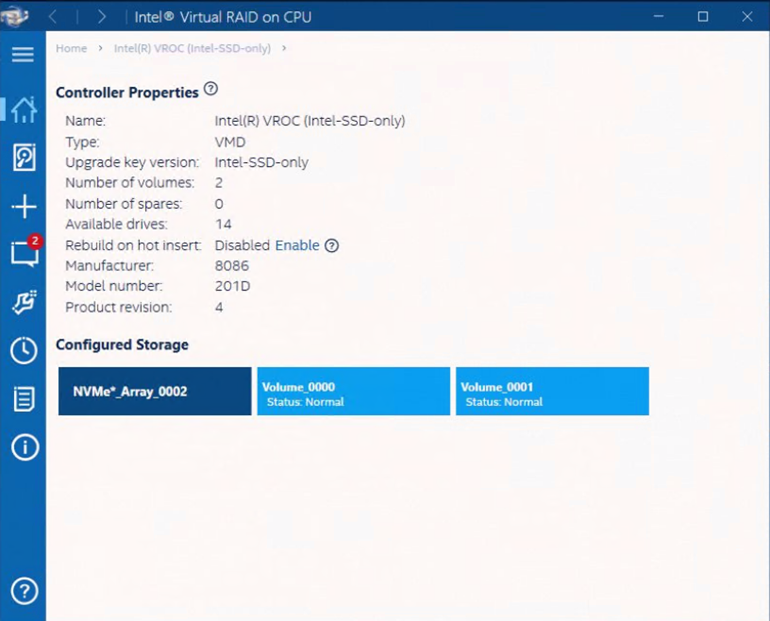
Available Volumes Under the Volume Management, select Actions.
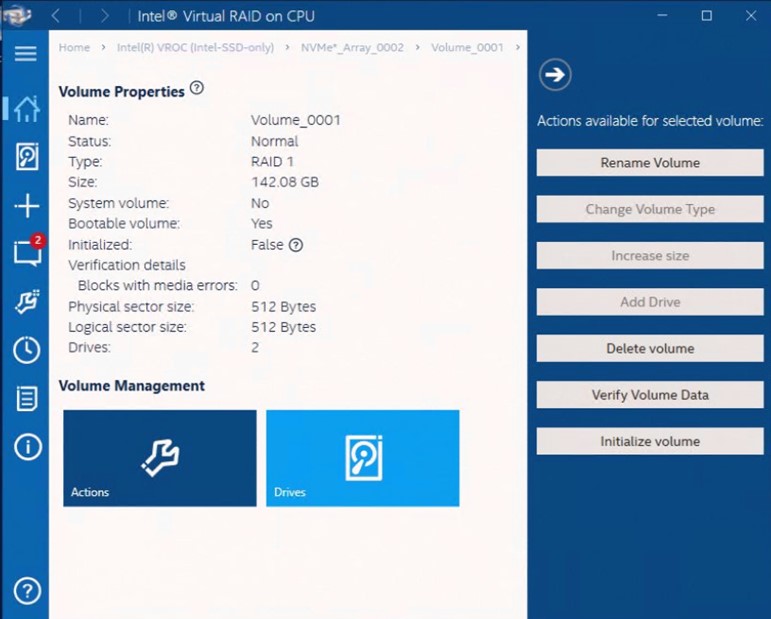
Available Volume Options Click the Delete volume option. A warning message will be shown on the screen.
Deleting Volumes
The Delete volume option is only available if a volume has been selected. Be careful in the selection for deletion of volumes as the data cannot be recovered.
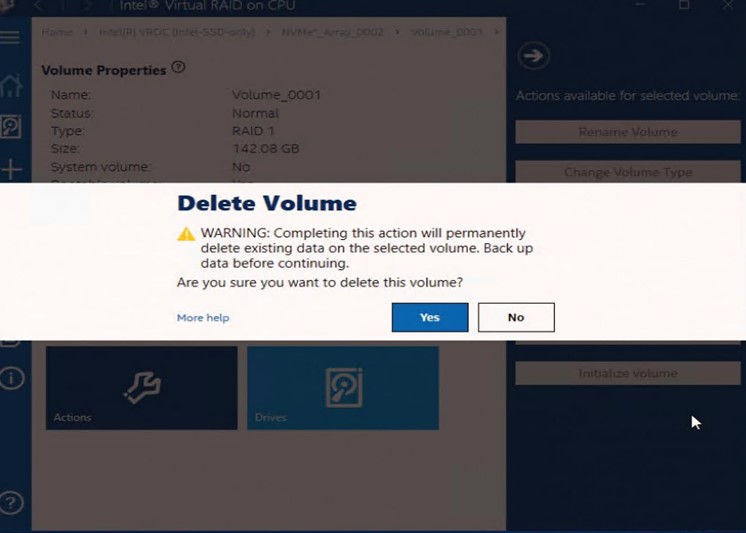
Delete Volume Confirmation Message Select Yes to complete the process. When the process completes, the volume will no longer be shown in the Intel® VROC GUI.