Troubleshooting Tips for Intel® Virtual RAID on CPU (Intel® VROC) in Windows* Environments

 Troubleshooting Tips for Intel® Virtual RAID on CPU (Intel® VROC) in Windows* Environments Troubleshooting Tips for Intel® Virtual RAID on CPU (Intel® VROC) in Windows* Environments |
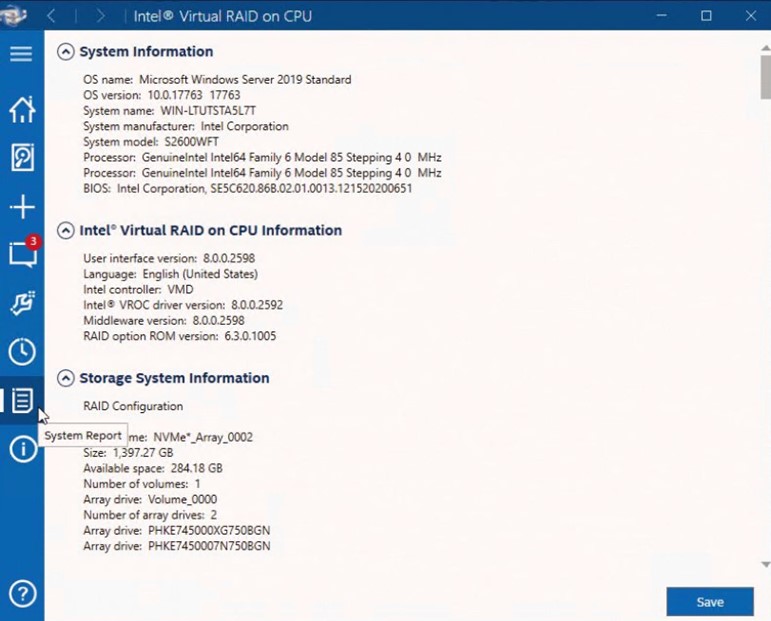
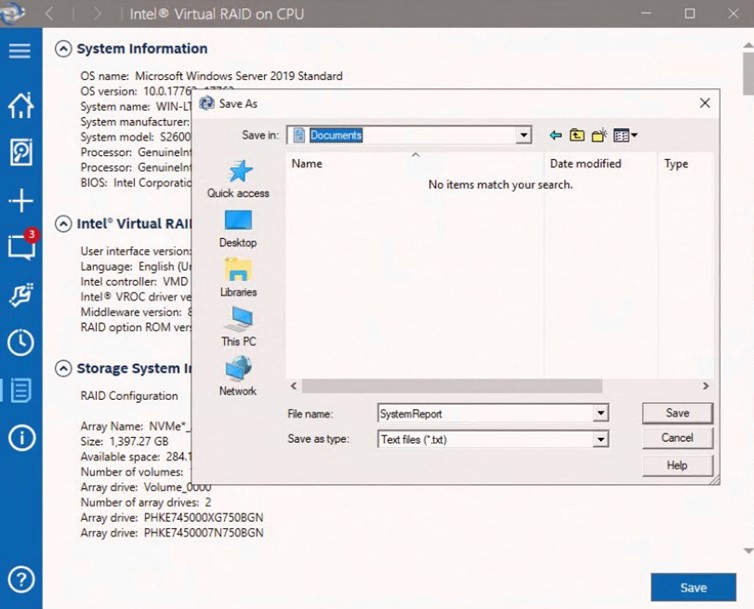
Troubleshooting Tips for Intel® Virtual RAID on CPU (Intel® VROC) in Windows* EnvironmentsCategory:Article ID:000100549Environment:Intel® VROC for Windows*Date:4/30/25 The following information will address some of the basic troubleshooting tips that can be used to diagnose and possibly self-treat a handful of issues. System ReportTroubleshooting issues on a system may be required. One of the tools that is helpful in doing so is called System Report. Follow the below steps to generate a System Report:
Help PageThe Intel® VROC GUI includes a Help section marked with a white "?". Clicking on this option brings a new window to the forefront of the screen where the user can find brief descriptions of the overall functionality of Intel® VROC capabilities and associated devices as well as troubleshooting tips for common issues. 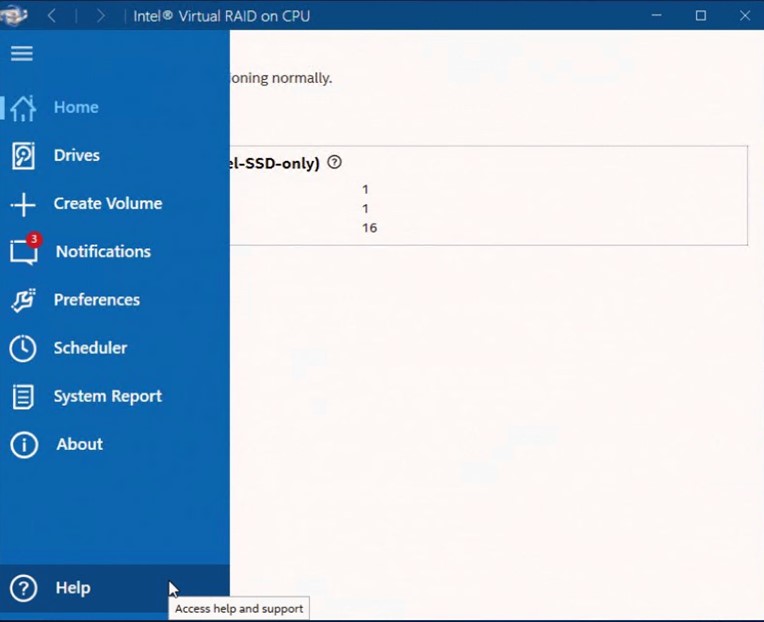 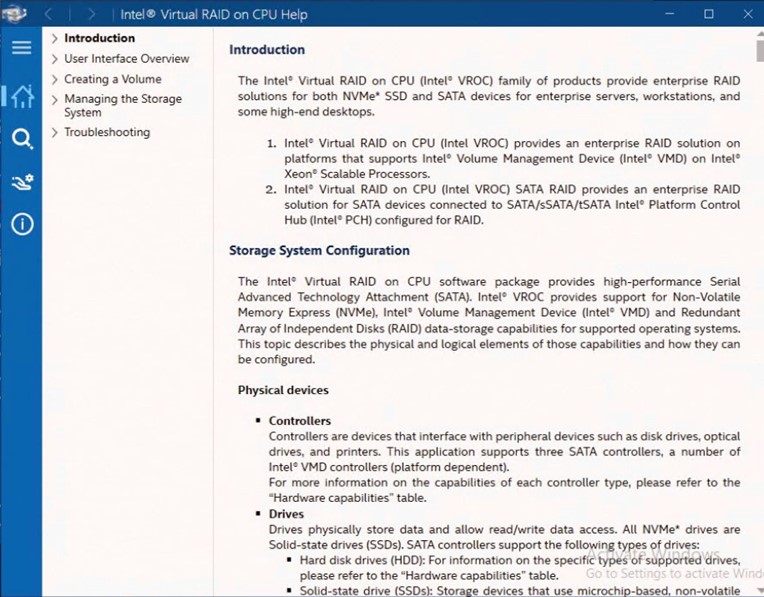 Drive States and RecoveryRefer to the resources below to learn about how to resolve the most common issues that may occur while using the Intel® VROC GUI application. Failed VolumesConsult the troubleshooting tips for when a RAID volume is reported as failed in Intel® Virtual RAID on CPU (Intel® VROC) Troubleshooting Tips for Failed Volumes in Windows* Environments. Degraded VolumesConsult the troubleshooting tips for when a RAID volume is reported as degraded in Intel® Virtual RAID on CPU (Intel® VROC) Troubleshooting Tips for Degraded Volumes in Windows* Environments. Other Volume StatesConsult the troubleshooting tips for when a RAID volume reports states other than failed or degraded in Intel® Virtual RAID on CPU (Intel® VROC) Troubleshooting Tips for Various Volume States in Windows* Environments. Disk EventsConsult the troubleshooting tips for when there are disk events reported by the Intel® VROC driver in Intel® Virtual RAID on CPU (Intel® VROC) Troubleshooting Tips for Disk Events in Windows* Environments. Software ErrorsConsult the troubleshooting tips for when there are software errors while utilizing the Intel® VROC features in Intel® Virtual RAID on CPU (Intel® VROC) Troubleshooting Tips for Software Errors in Windows* Environments. Troubleshooting Using the UEFI ShellThere are two tools available within the Pre-OS kit that can be used to troubleshoot issues. These two tools are within the efi_standalone_VROC_rs folder inside the Intel® VROC package for Windows*. The first tool is HWKeyCheckVROCRS.efiThis tool is used to determine if the system is able to detect the presence of a hardware upgrade key plugged into the motherboard. If there is no key installed, the output will look as follows:  If there is a hardware key installed, the output will look as follows:  RCmpVROC.efiThis tool is used to send system information to a text file from within the UEFI shell to the connected thumb drive. If you need this file to be saved elsewhere, you will have to direct the output to that location. |