

Intel® Virtual RAID on CPU (Intel® VROC) Graphical User Interface (GUI) Application for Windows*

 Intel® Virtual RAID on CPU (Intel® VROC) Graphical User Interface (GUI) Application for Windows* Intel® Virtual RAID on CPU (Intel® VROC) Graphical User Interface (GUI) Application for Windows* | ||||||||||||||||||||||||||||||||||||||||||
Intel® Virtual RAID on CPU (Intel® VROC) Graphical User Interface (GUI) Application for Windows*Category:Article ID:000101235Environment:Intel® VROC for Windows*Date:5/20/25 The Intel® VROC GUI is a Windows* based application that provides users monitoring and management capabilities for the Intel® VROC storage subsystem. It offers a wide range of monitoring and management activities for the Intel® VROC based RAID subsystem. Consult the Intel® Virtual RAID on CPU (Intel® VROC) Graphical User Interface (GUI) Getting Started Guide to learn about:
The RAID subsystem is defined as drives attached to the Intel® Volume Management Device (Intel® VMD) controller or the Platform Controller Hub (PCH) controller in RAID mode. The Intel® VROC GUI application requires (at a minimum) Microsoft* .NET 4.7.2. Consult other installation requirements in What Are the Installation Requirements for the Intel® Virtual RAID on CPU (Intel® VROC) Graphical User Interface (GUI) Application? Intel® VROC InstallationThe Intel® VROC GUI application, drivers and supporting infrastructure are distributed through a single installation executable. When the Intel® VROC installer is executed, it will perform the following tasks:
The product installer shall install the following components:
Default Installation PathThe Intel® VROC installer software will install the Intel® VROC solution to a default folder unless specified otherwise. The default path shall be Intel® VROC (SATA RAID) DriverThe Intel® VROC installer will install separate driver binaries for the SATA, sSATA and tSATA controllers. Intel® VROC (VMD NVMe* RAID) DriverThe Intel® VROC installer will install a single Intel® VROC (VMD NVMe* RAID) driver binary for all Intel® VMD devices enabled in the system. Intel® VROC (Non-VMD NVMe* RAID) DriverThe Intel® VROC installer will install a single Intel® VROC (Non-VMD NVMe* RAID) driver binary for Intel NVMe* SSDs found in a supported platform (Non-VMD capable). Understanding the ApplicationThe Intel® VROC GUI application allows the user to optimize and maintain a healthy storage system by creating volumes, customizing performance settings, and managing storage system elements. The following information provides the user with a general overview of the storage system configuration and an individual review of all the areas contained in this application. Storage System ConfigurationThe Intel® VROC storage system combines hardware capabilities with the Intel® VROC family of products to provide flexible data storage units on the user’s computer. Each data storage unit, or RAID configuration, consists of three elements that include:
When at least one RAID volume is present on the system, these elements are represented in the storage system. ArrayAn array is a collection of two or more NVMe* or SATA disks in a RAID configuration and is the highest element in the hierarchy of a storage system. Once a volume is created, the disks in the array are used to create that volume within an array. An array can include one or two RAID volumes if the hardware allows it. VolumeA volume is the storage area on two or more disks whose type dictates the configuration of the data stored. If the user created a volume for data protection, then the user’s storage system may include a RAID 1 volume spanning two NVMe* or SATA disks, which mirrors data on each disk. DisksA disk (Hard Drive Disk (HDD), Solid-State Drive (SSD)) physically stores data and allows read/write data access. If a disk is used to create a volume, it becomes an array disk because it has been grouped with other disks to form an array. The storage system can also include ATAPI devices, which cannot be used to create a volume. They are a mass storage device with a parallel interface, such as CD-ROM, DVD/Blu-ray disc, or tape drive. When selecting drives to be RAID volume members, a warning message will be displayed if there are any significant discrepancies between two or more selected drives. The warning message will be displayed if one of the following conditions is encountered:
NavigationThe Intel® VROC GUI application is organized into navigation options located in a left bar. A description of each option is available in Intel® Virtual RAID on CPU (Intel® VROC) Graphical User Interface (GUI) Components.  Navigation Options Storage System StatusAnytime the Intel® VROC GUI application is launched, it opens to the status area. This is where the general state and health of the user’s storage system is reported, both in the storage system view and in details. Depending on the status, volume creation and management options may be available to enhance or repair the user’s storage system. Understanding the Status AreaTo get the full benefits of what the Intel® VROC GUI application has to offer, it is critical to maintain a healthy storage system. The application helps the user track and report any disk or volume related problems that could put the safekeeping of the user’s data at risk. The storage system can be in the states described in the following table.
Volume StatesThe table below shows the possible states a RAID volume may be in. Refer to Troubleshooting Tips for Intel® Virtual RAID on CPU (Intel® VROC) in Windows* Environments for more information to recover RAID volumes in degraded or failed state.
RAID-Ready ModeA RAID-Ready system refers to a system that has been configured to support the Intel® VROC family of products. The system BIOS has the appropriate pre-boot drivers and has been configured for RAID mode. Intel® VROC will allow a pass-thru drive that contains data or a bootable operating system to become a RAID volume. This can be done while the system remains operational. RAID-Ready Migration
Graphical User InterfacesIntel® VROC will provide support for graphical user interfaces for management of RAID arrays and volumes on NVMe* SSDs directly connected via PCI express slots controlled/managed by the Intel® VMD enabled ports. This includes a graphical user interface in the operating system as well as a web-based graphical user interface for remote management: Intel® ASM. Intel® VROC Pass-Thru Mode GUI SupportThe Intel® VROC GUI application will provide support for Locate LED and Managed Hot-Plug to be selected by the user when Intel® VMD is enabled but the Intel® VROC RAID hardware upgrade key is absent from the platform. RAID functionality is disabled in this configuration. Intel® VROC Enabled Mode GUI SupportThe Intel® VROC GUI application will provide support for RAID managed, Locate LED and Managed Hot-Plug to be selected by the user when Intel® VMD is enabled, and an Intel® VROC RAID hardware upgrade key is present in the platform. Intel® VROC GUI VersionThe specific version of the Intel® VROC GUI application is obtained from the Help window by clicking on the About section. See more details in Intel® Virtual RAID on CPU (Intel® VROC) Graphical User Interface (GUI) Components. Intel® VROC GUI Online SupportIn the Intel® VROC GUI Help menu, the sub-menu Online Support when selected will display a pop-up window with the support URLs as shown in the figure below. The user can use these resources to access the available online self-help support collateral. 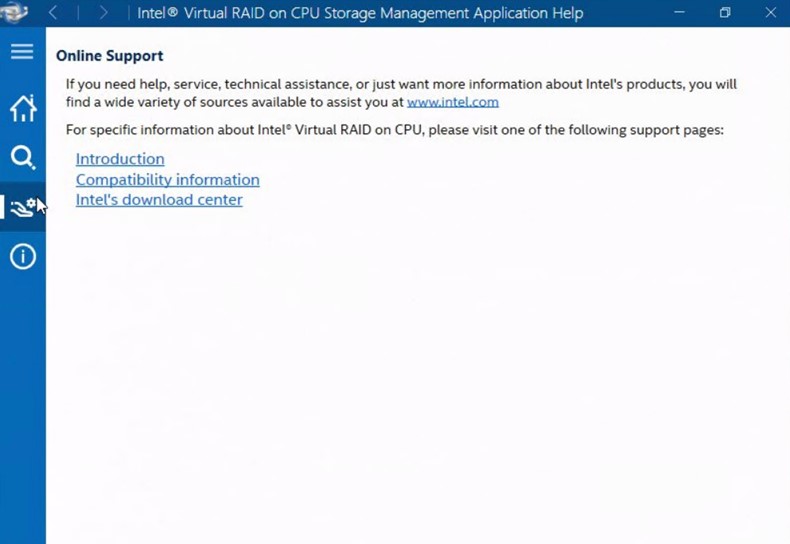 |


