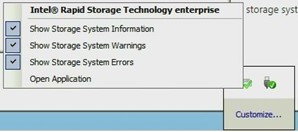
Intel® Virtual RAID on CPU (Intel® VROC) Notification Area in Windows*

 Intel® Virtual RAID on CPU (Intel® VROC) Notification Area in Windows* Intel® Virtual RAID on CPU (Intel® VROC) Notification Area in Windows* | ||||||||||||
Intel® Virtual RAID on CPU (Intel® VROC) Notification Area in Windows*Category:Article ID:000101236Environment:Intel® VROC for Windows*Date:5/20/25 The Intel® VROC notification area (also called the system tray) is located on the user’s desktop. The taskbar contains the notification area icon for the Intel® VROC family of products. The icon provides storage system status and notifications, such as volume and disk events, based on a change of state. The notification area icon will automatically display in the notification area once the Intel® VROC package is installed. Both administrators and standard users can change the notification area settings using the application or directly from the notification area. Setting changes are applied on a per-user basis and do not affect other users’ settings. Note The Intel® VROC user interface icon will not automatically display after the product is installed. After the Intel® VROC user interface is opened for the first time following the installation, the Intel® VROC notification tray icon will display. As a result, there are no notifications of potential issues encountered with Intel® VROC-managed devices until after the interface is opened following the installation. After the Intel® VROC user interface is opened for the first time, the system will then be configured to automatically display any notifications each time the interface is opened. Opening the Application from the Notification AreaTo open the Intel® VROC application from the notification area, follow these steps:
The notification area icon can be in the states described in the table below.
Selecting System NotificationsTo select system notifications, follow these steps:
To hide the notification area icon, deselect the Show the notification area icon under System Preferences. Reviewing NotificationsHover over the icon at any time to view the storage system status or the progression of an operation. A pop-up window will notify the user of specific events, such as a missing disk or the completion of an operation. Open the application to view more details about storage system events in the Status or Manage areas. |