

How To Determine Which Intel® Volume Management Device (Intel® VMD) Ports To Enable on Intel® Server Systems

 How To Determine Which Intel® Volume Management Device (Intel® VMD) Ports To Enable on Intel® Server Systems How To Determine Which Intel® Volume Management Device (Intel® VMD) Ports To Enable on Intel® Server Systems |
How To Determine Which Intel® Volume Management Device (Intel® VMD) Ports To Enable on Intel® Server SystemsCategory:Article ID:000057865Environment:Intel® Server SystemsDate:2/6/25 Description
Resolution
Additional informationRefer to the Technical Product Specification of your Intel Server Board or Intel Server System to identify the corresponding Riser/Slot or onboard OCuLink port number and further details on Intel® VMD configuration. For example, if the PCIe* switch is installed on the top PCIe slot of the riser slot in the middle of the Intel Server Board S2600WF Family, enable the Intel® VMD ports only for Riser #2 Slot#1. 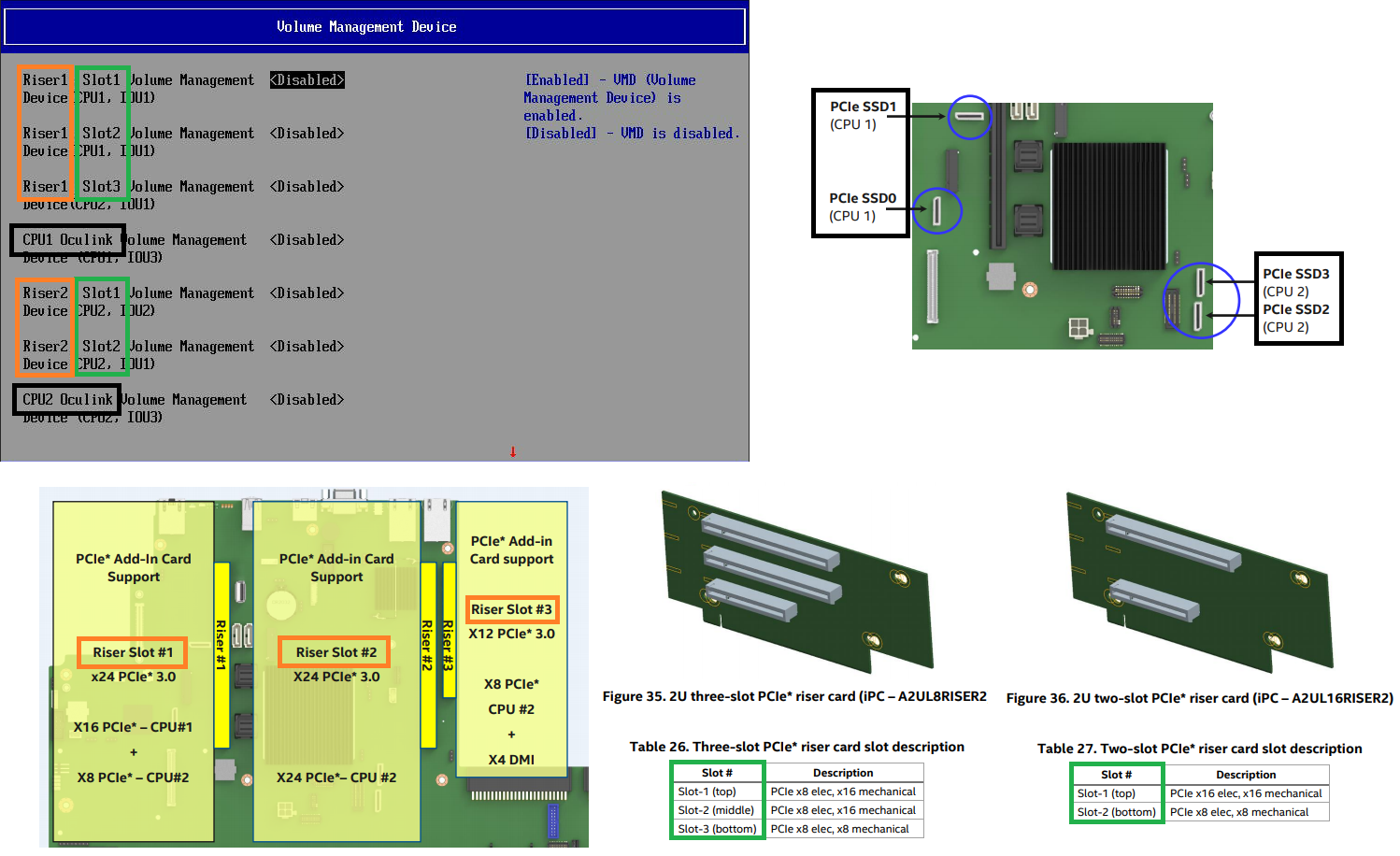 |