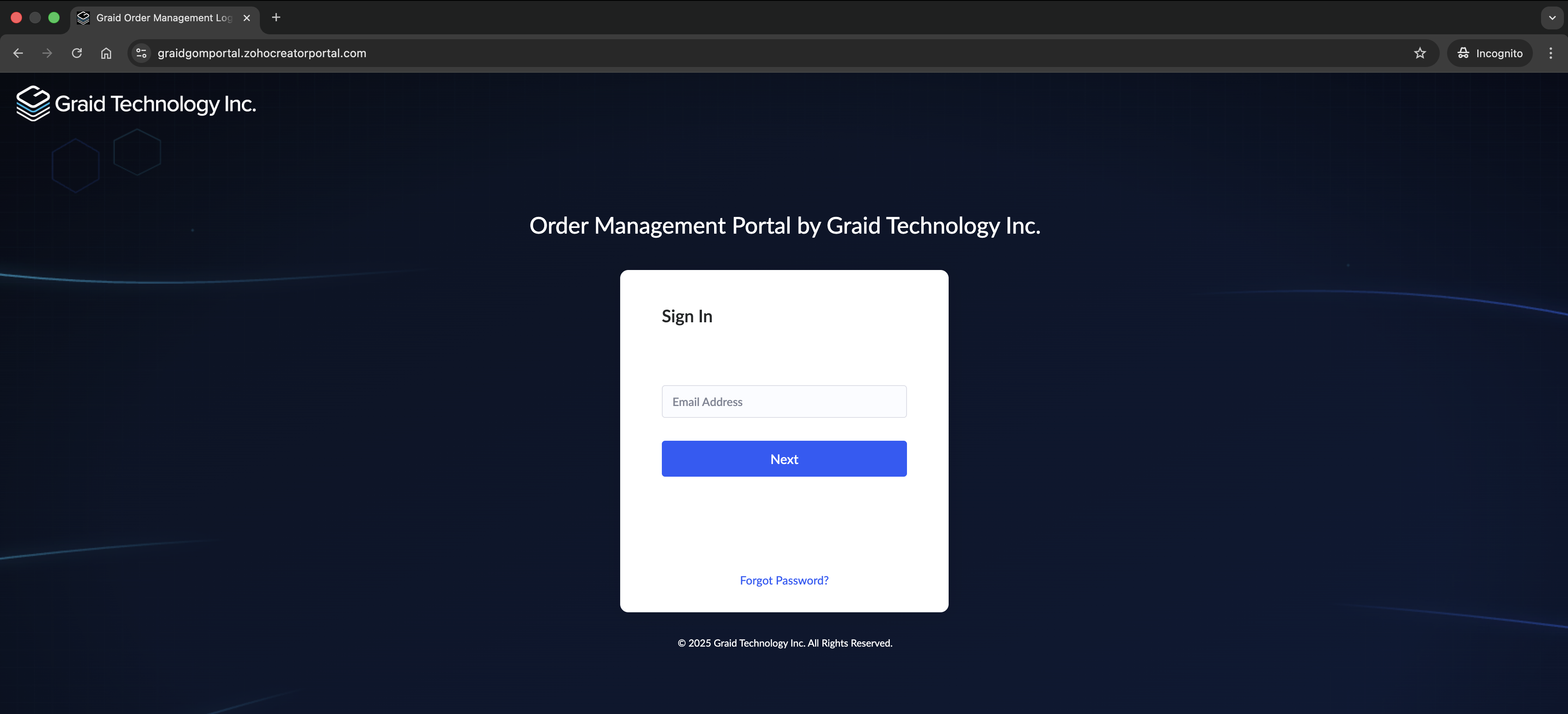
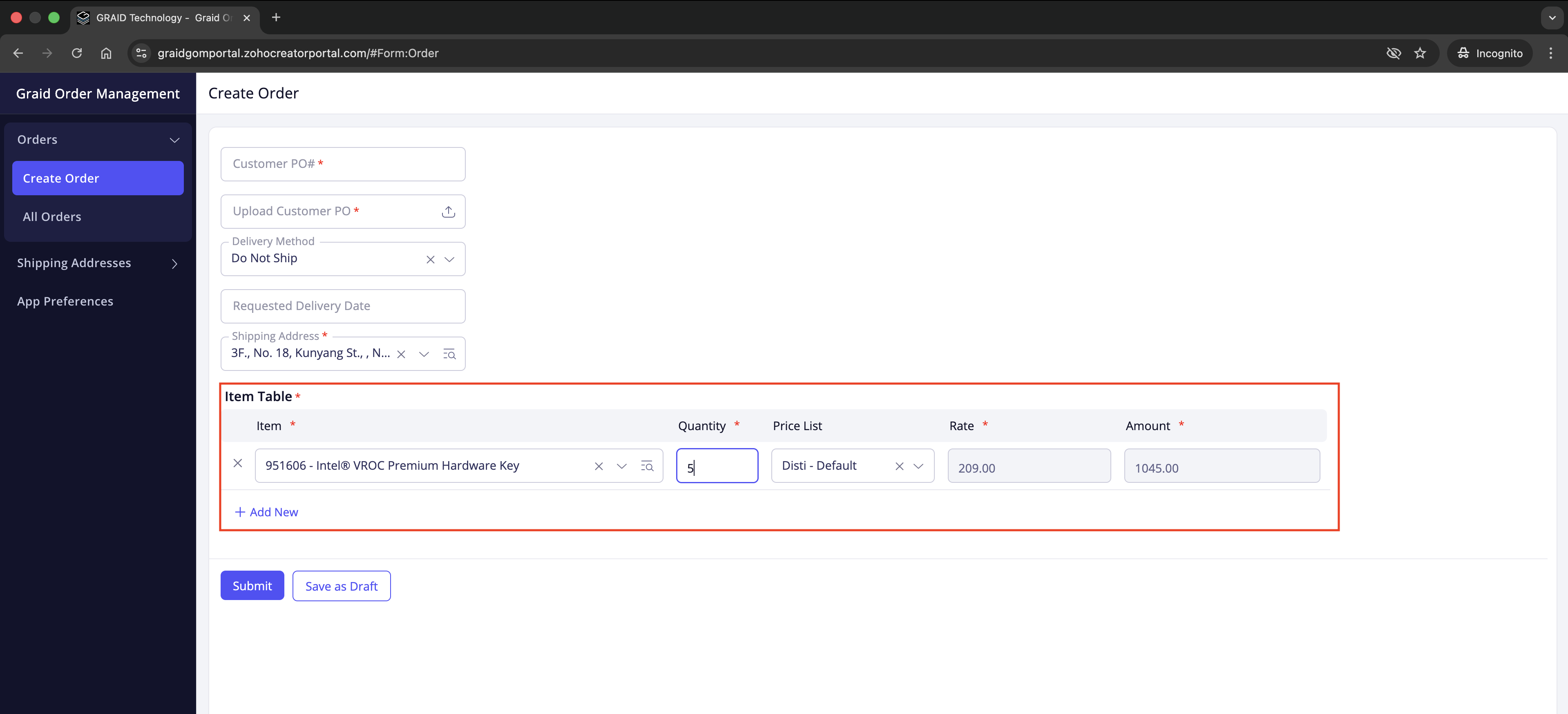
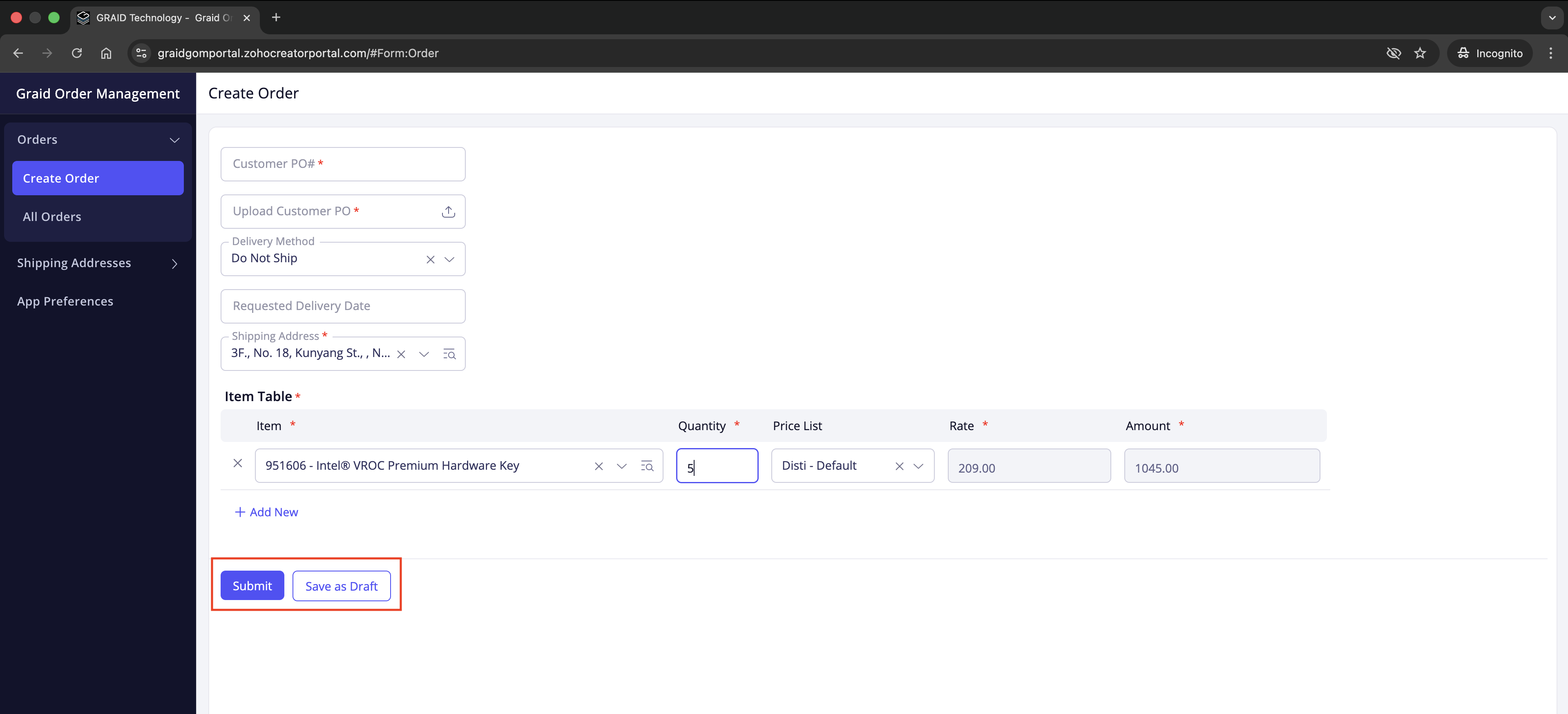
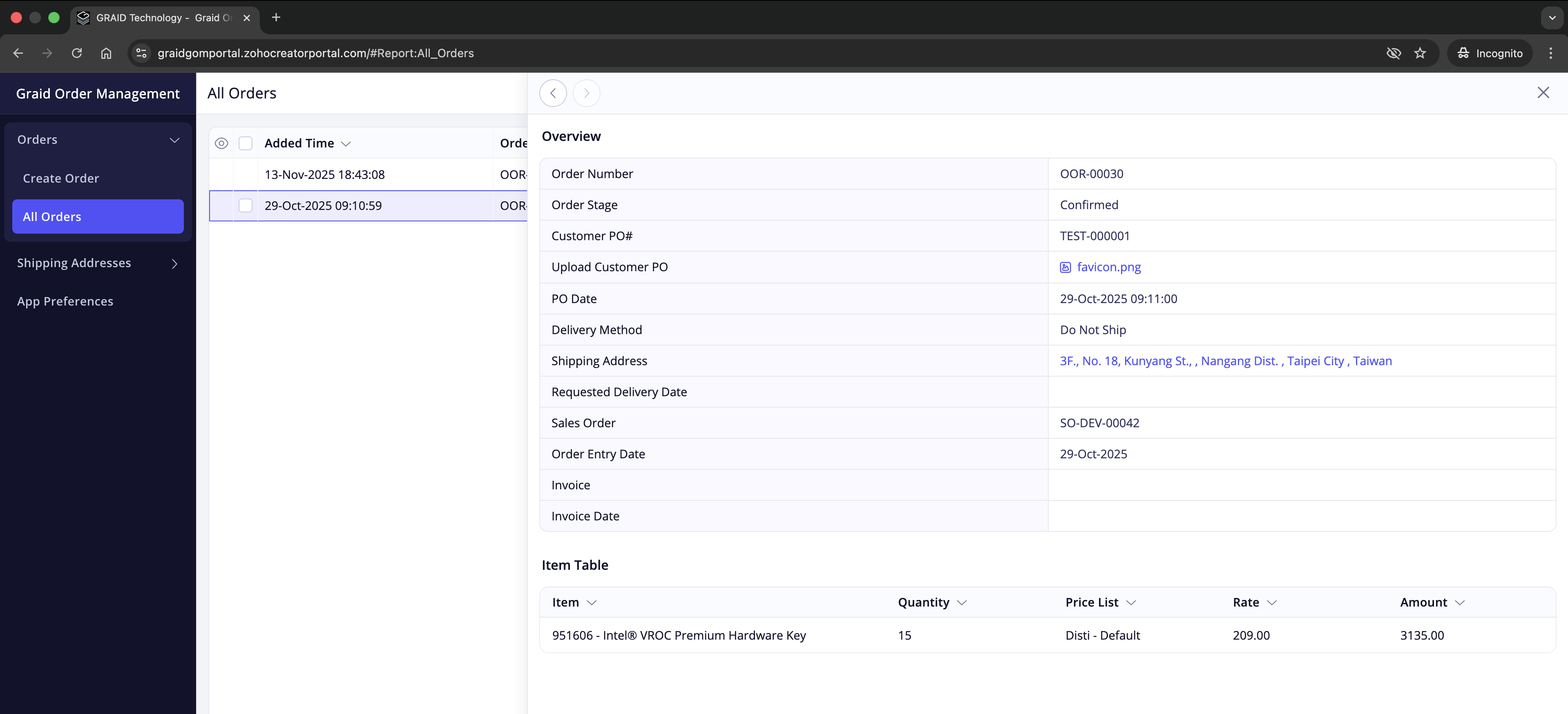
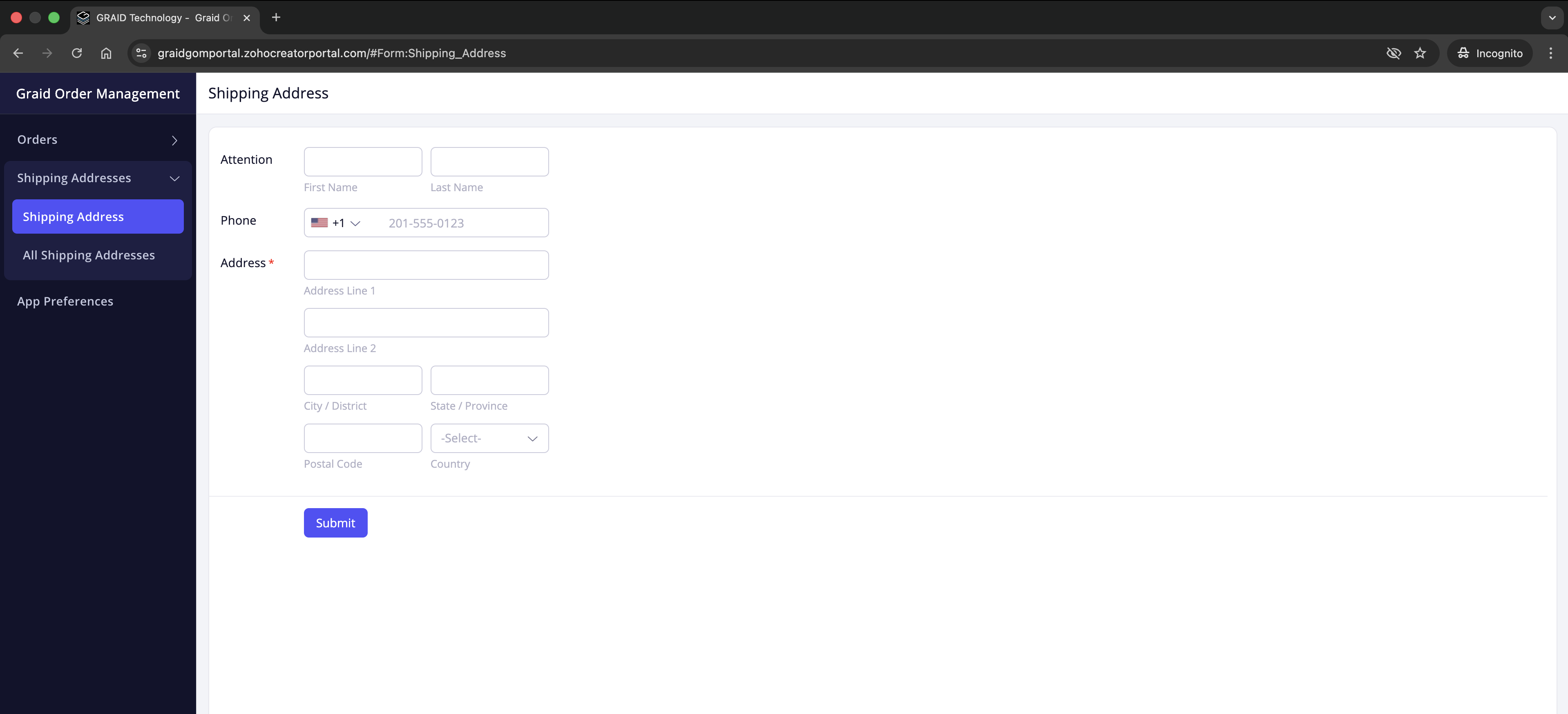
On your first login, you need to authorize this connection so the portal can load items, price lists, and addresses.
Steps
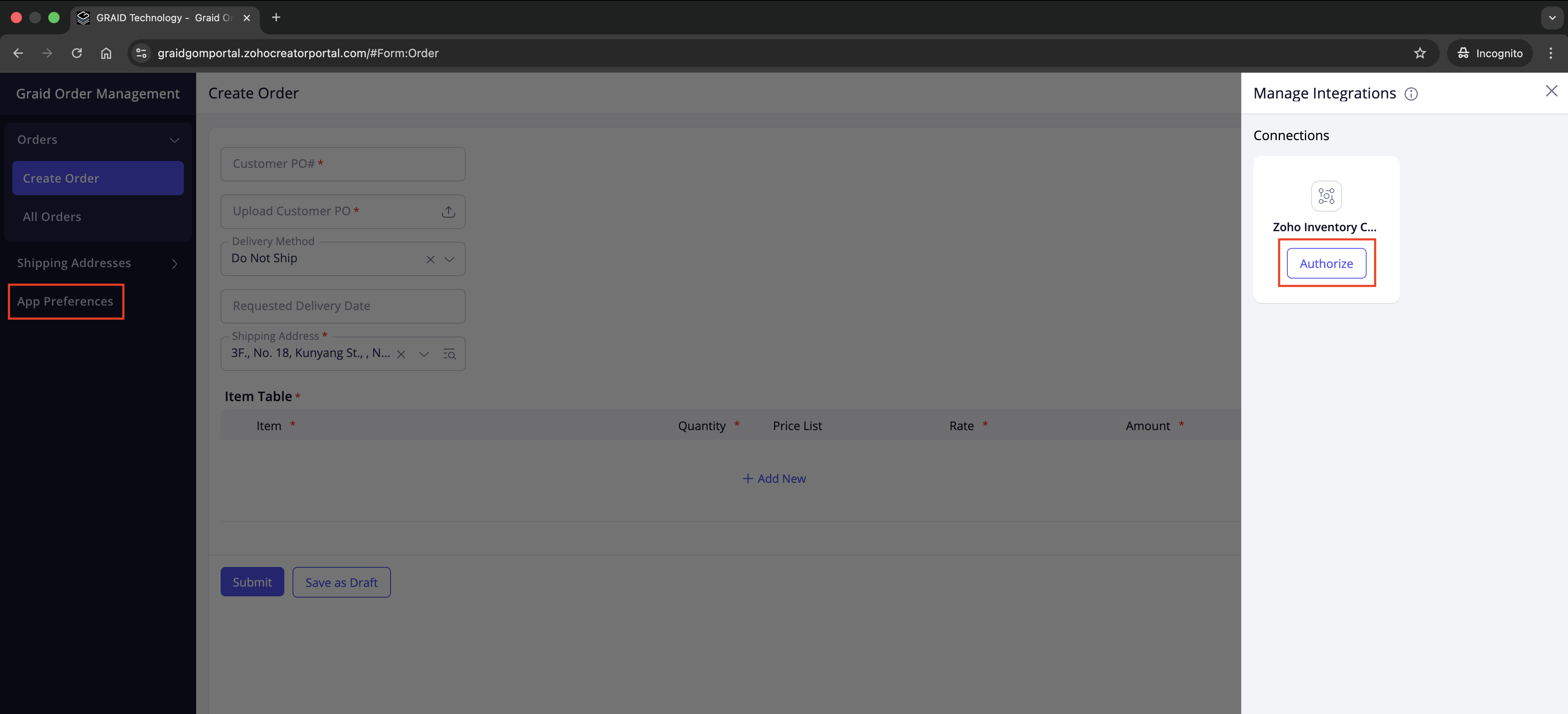
In the left navigation, select App Preferences. The Manage Integrations panel opens.
In the Zoho Inventory Connector card, click Authorize.
When prompted:
Sign in with the Zoho account that manages your company’s Inventory organization.
If you belong to multiple organizations, choose the correct one.
Approve the requested permissions.
Authorize connection in the first login
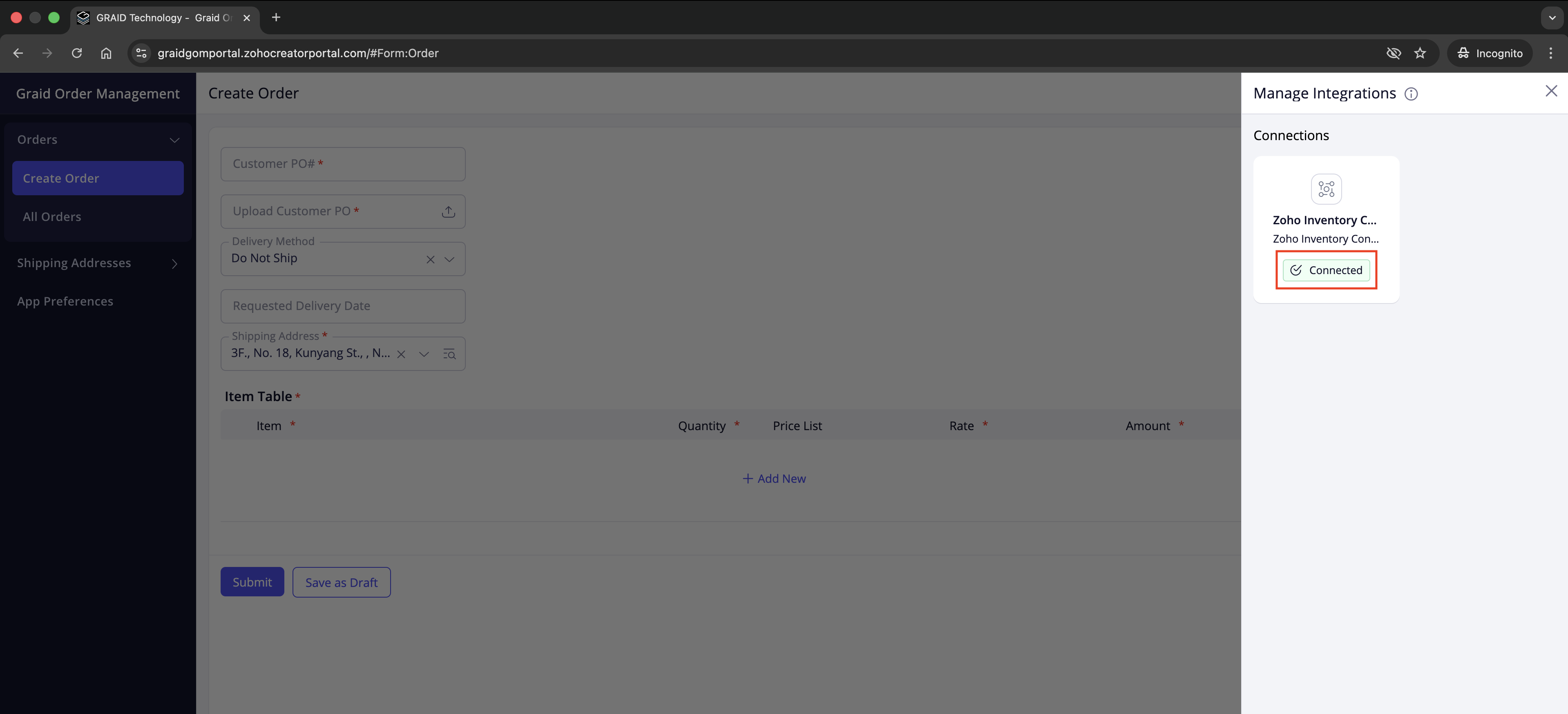
Successful authorization
The connector card shows a green Connected badge.
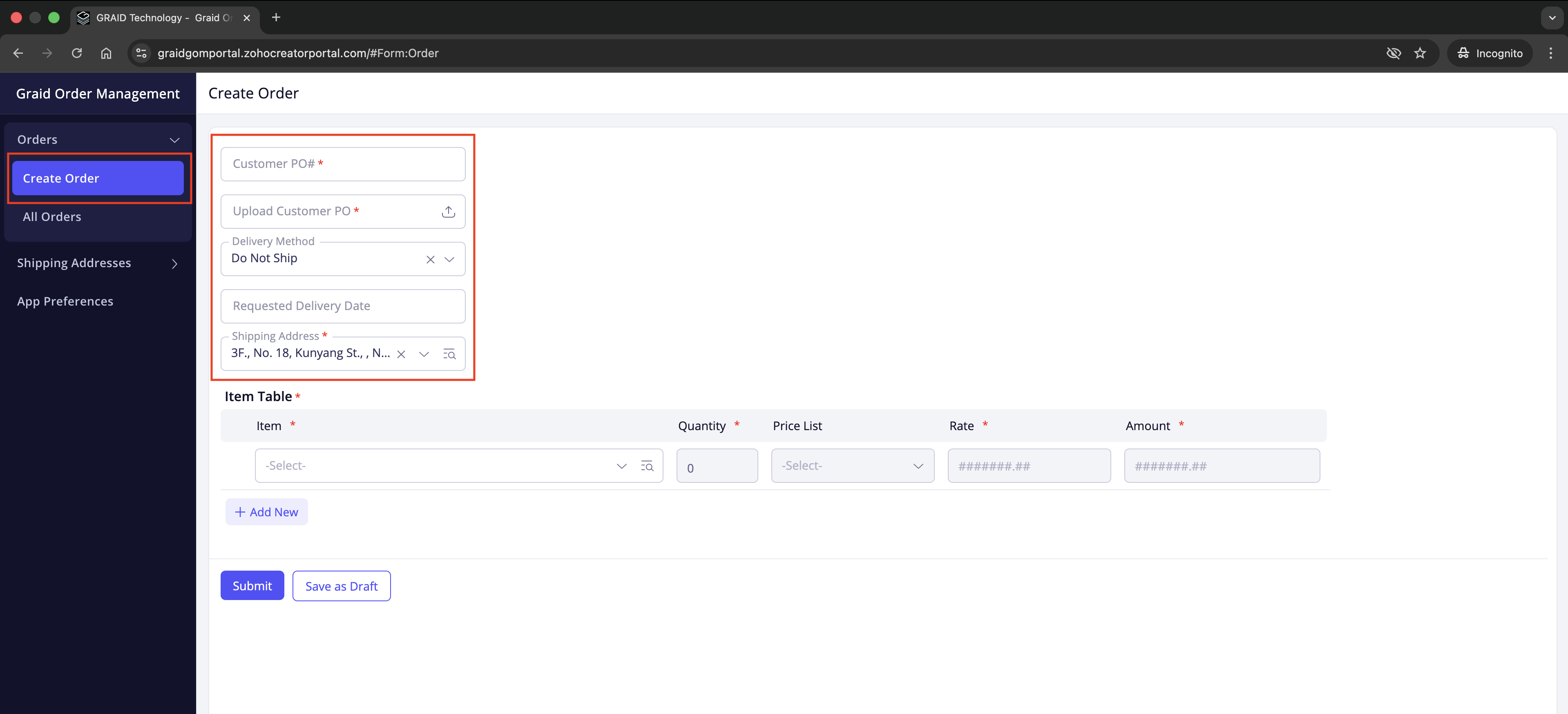
Close the panel and proceed to Orders > Create Order.
Check connection status
Tips
If you do not see App Preferences or the Authorize button, your account may not have permission or the connection is already set up. Contact your Graid representative.
If nothing happens after clicking Authorize, allow pop-ups for graidgomportal.zohocreatorportal.com and try again.
If you run into sign-in issues, cannot find your shipping address, or need to update an order after submission, contact your company’s Graid representative. Include your Order Number and Customer PO # when available.



 Graid Order Management Portal: Customer Guide